What’s New in PipeTakeoff: October 2026
By Matt Laux, founder of PipeTakeoff
Every month we write down what changed in PipeTakeoff and why it matters to the person doing the takeoff. October's biggest change is weld counts: each drawing's welds now sit beside its material takeoff (MTO). The rest of the month was about editing speed, packages that do not arrive tidy, and RFQs that are easier for vendors to answer.
| Change | Where |
|---|---|
| Weld counts with shop and field split and diameter-inches | Drawing review |
| Copy, paste, fill down and clear across cell ranges | Material grid |
| Feet-and-inches entry for pipe lengths | Material grid |
| Waste factors with an order quantity beside the takeoff quantity | Project MTO and exports |
| Multi-sheet isos and overflow sheets handled automatically | Upload |
| Callouts highlighted on the drawing for the selected row | Drawing review |
| Page notes, revision clouds and markups shown for review | Drawing review |
| Clearer RFQ emails, delivery status and phone quoting | RFQs |
| Help drawer, walkthrough videos and a sample project | Every screen |
| Weld counts in the free Instant Audit | Website |
Weld counts
Review now has a Welds tab. PipeTakeoff reads the weld symbols on each isometric and lists every weld with its size, schedule, and whether it is a shop or field weld, then totals the count and diameter-inches by size. Each weld is marked on the drawing, so you can check it against the sheet instead of taking a number on trust.
- Questions, not guesses. When a weld is unclear, such as an open pipe end with no weld drawn or a tie-in with no part on one side, the Welds tab asks you about it. Answer it there, or show it on the drawing.
- Edit like the drawing. Add a weld where it is drawn, drag a marker to the right spot, change a weld from shop to field, select several welds for one edit, and renumber them along the pipe.
- Project settings for the rest. Set the pipe stock length so the welds where pipe lengths join are counted, and set a blanket shop and field split for the project.
- In your export. The spreadsheet export adds a Welds summary and a full Weld List.
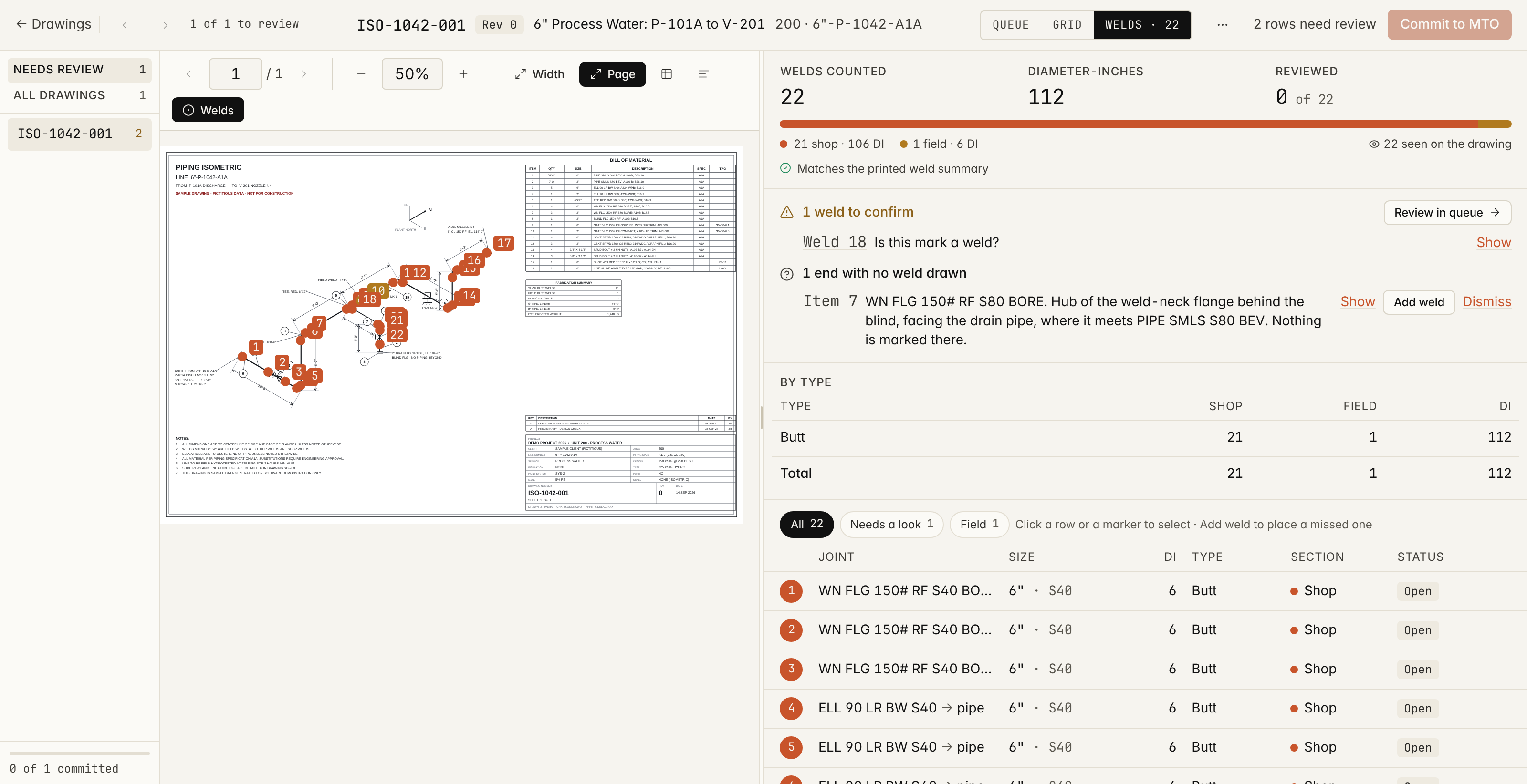
You can try the weld count on a sample drawing in the interactive demo, and a short walkthrough video is in the help drawer on the review screen.
Faster editing in the grid
- Work on ranges, not single cells. Select a block of cells to copy and paste it, fill a value down a column, or clear it in one step, the way you would in a spreadsheet.
- Type lengths the way the drawing prints them. Pipe quantities in feet accept and display feet and inches, so 12'-6" goes in as written.
- Save without committing. Cmd+S or Ctrl+S now saves your work on a drawing instead of committing it.
- Flags point at the cell. When a row is flagged for review, the cell the flag is about is highlighted, so you know where to look first.
Order quantities with waste factors
Each project can now carry a waste factor table by material category, with overrides on individual lines and organization defaults copied into new projects. PipeTakeoff shows an order quantity beside the takeoff quantity on the project MTO and in the spreadsheet and CSV exports. The takeoff quantity itself is never changed, so you can always see what the drawings call for and what you plan to buy.
Catalog prices also carry a unit now, including metric meters and millimeters, so a price per foot and a price per meter are not mixed up.
Packages that arrive messy
- Multi-sheet isos. Sheets of one iso that share a drawing number (SHEET 1 OF 3 and so on) now come in as separate drawings with a, b and c added to the number, instead of being stopped as duplicates.
- Overflow sheets. A sheet that only continues the previous iso's material list is attached to that iso, and review warns you when a drawing's continuation sheet is missing from the package.
- Drawings that are not isos. P&IDs, plans and schematics are now named as such on the review screen, so you know why no takeoff came from them.
- Remove several drawings at once. Select drawings in a project and remove them together.
Review that catches more
- See where each item is called out. Select a row and PipeTakeoff outlines that item's numbered callouts on the drawing and shows how many it found, so you do not have to search a large sheet by eye. Click a callout on the drawing to find its row. This works on drawings that mark items with numbered bubbles or tags.
- Notes and markups reach review. General notes that limit fabrication or mark scope as temporary, revision clouds and field markups are now shown for review. Items listed only in a note come in as flagged rows for you to confirm.
- Warnings get a deliberate look. When a drawing raises a warning only a person can settle, such as metric units or a title block mismatch, commit waits for one Mark as checked click. Metric units are now noted once per upload rather than on every drawing.
- Pick up where you left off. The project overview shows packages you started and did not finish, with a Continue button that opens the next drawing still waiting.
- Status at a glance. The collapsed drawing list shows each drawing's status as a dot.
RFQs that are easier to answer
- Your name on the email. RFQ emails now show your company as the sender, so vendors recognize who is asking. The email leads with the quote button, the due date and how to reply, and a long material list is shortened with a link to the rest.
- Know it arrived. Each vendor on an RFQ shows Delivered once their email service accepts the message, separate from Sent and Viewed.
- Vendors see the RFQ before signing up. The link in an RFQ email now opens the request itself: your company, the project, the due date, your message and the material list. A vendor who wants to quote signs up from there and lands straight on that RFQ.
- Quote from a phone. The vendor quote page works on a phone, with each line laid out as a card for price, quantity offered and lead time.
- Unanswered RFQs are called out. If no vendor has quoted a day after the due date, the RFQ is marked lapsed and you get an email. Extend the due date to reopen it.
- Takeoff or order quantities. When you build an RFQ from the project MTO, you can send vendors the takeoff quantities or the order quantities with your waste factors applied.
Getting started and getting help
- Help on every screen. Press ? or use the Help item in the sidebar to open a short guide for the screen you are on, with walkthrough videos recorded from the real app.
- A sample project. A new workspace can start from your own drawings or from a sample project, so you can try review before uploading anything.
- Easier sign-in. Sign-in emails include a 6-digit code you can type in, sessions last 30 days, and an expired session tells you why you are seeing the sign-in page.
On the website
You can now try the review screen in your browser without an account, and compare PipeTakeoff with other piping takeoff options.
The free Instant Audit now counts welds too. Next to the MTO preview it shows the weld count, the shop and field split and diameter-inches by size, and tells you when that differs from the weld total printed on the drawing. The Excel file adds a Welds sheet.
The Instant Audit also got easier to use. You can see the sample drawing before you run it, a drawing package over the page limit is caught before it uploads, and a failed upload tells you whether the problem is your connection or a network that blocks it. You can have the result emailed to you as an Excel file, and if you sign up in the same browser, the upload page of your first project shows the audit you already ran.
Want to see it on your own drawings? Try a project. Your first project is free, and the estimator stays in charge of the final MTO.